ID JuJu reads the barcode on the back of a licence, does the arithmetic, and shows one answer big enough to read in the dark. At the end of the night it turns the whole door into a clean event report.
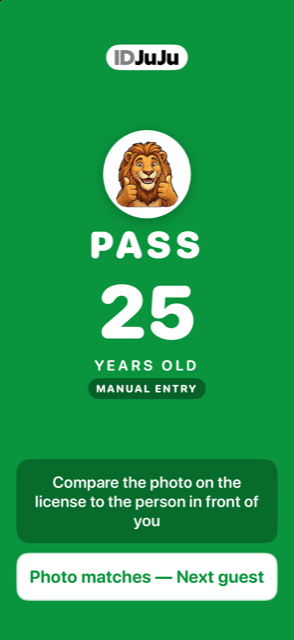
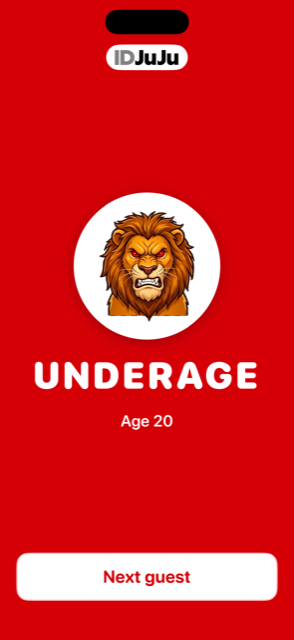
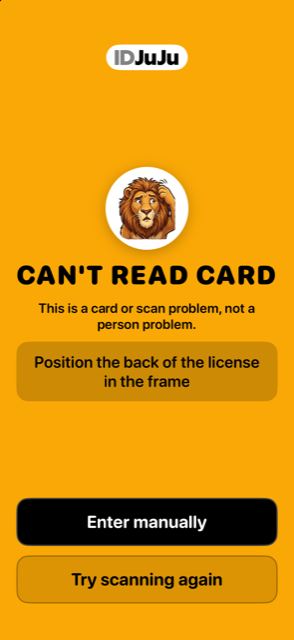
There is nothing to interpret and nothing to configure at the door. Point the phone at the barcode. The screen turns green, red, or amber.
Every decision in this app came from standing at a door with a queue behind the person in front of you.
The app makes no network call while scanning. A dead venue Wi-Fi or a packed stadium cell tower changes nothing.
There are no user accounts. Hand a host the phone and they are working. The password only guards exports and settings.
A pass is not finished until the host confirms the photo matches. The app will not move to the next guest until they do.
Every scan is written to encrypted storage on the phone. There is no cloud account behind the app and no third party in the middle.
Damaged cards get typed in and are marked as manual, so the report shows exactly how many were handled that way.
Records cannot be wiped until they have been exported, and only an administrator can do it.
Five things to know. That is the entire job.
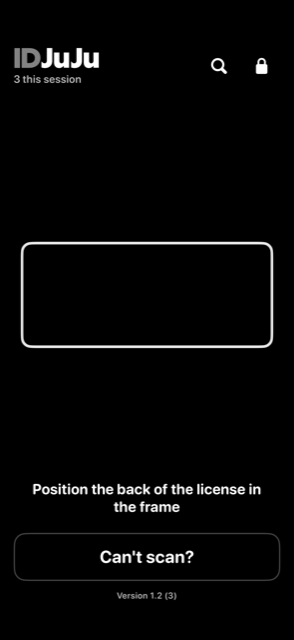
The barcode is on the back of a driver's licence, not the front. Fill the frame with it. The app reads it on its own — there is no shutter button to press.
PASS tells you the card says the guest is old enough. It does not tell you the card belongs to them. Compare the photo to the face in front of you, then tap Photo matches — Next guest.
You can turn the screen around and show them. The number came off their own card, which takes the argument off you and puts it on the arithmetic. Tap Next guest and carry on.
Wipe the card, flatten it, and tap Try scanning again. Plenty of cards are just worn out. If it still will not read, tap Enter manually.
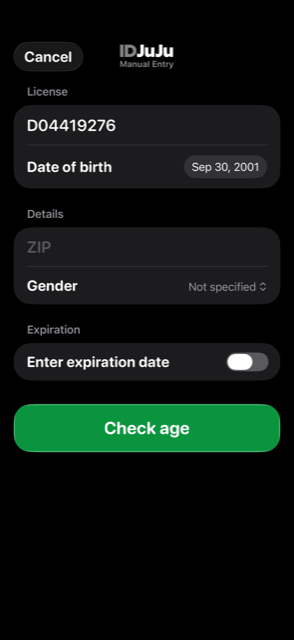
Type the licence number and set the date of birth from the front of the card, then tap Check age. You get the same green or red answer, and the record is flagged as manual so the report is honest about it.
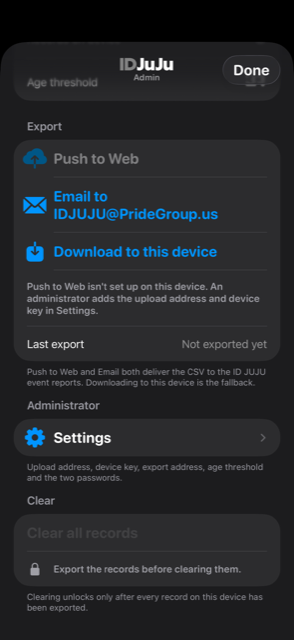
The supervisor password opens the event details and the three export buttons. Nothing else about the app changes.
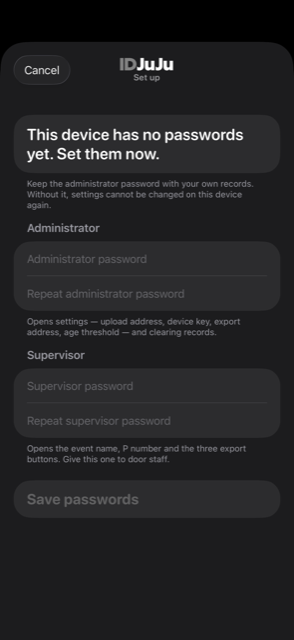
The first time anyone opens the padlock on a fresh phone, it asks for an administrator password and a supervisor password. Door staff get the supervisor one. The administrator one stays with the manager.
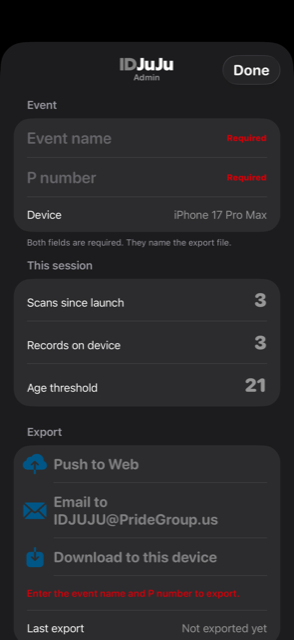
Tap the padlock, enter the supervisor password, then fill in the Event name and P number. Both are marked Required because they become the file name.
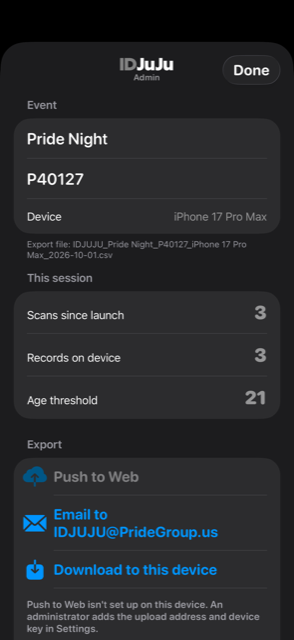
The app shows you the file it is about to produce, the number of records on the device, and the age threshold in force. If the record count looks wrong, sort that out before you export.
Push to Web uploads straight into the Pride Group site and builds the event report. Email sends the spreadsheet to the ID JuJu mailbox. Download to this device is the fallback when you have neither.
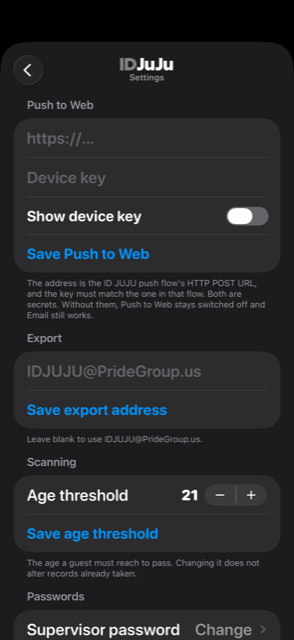
Behind the administrator password sit the upload address, the device key, the export address, the age threshold, and both passwords. There is also Erase settings on this device, for when a phone leaves your hands.
An export is not a pile of raw scans. It arrives named, filed, de-duplicated, and summarised — ready to hand to a venue, an insurer, or a licensing officer.
The event name, the P number, the phone, and the date are baked into the file name, so two doors at the same event never collide.
Each upload rebuilds a workbook for that P number with a Summary tab and every entry behind it. Push the same shift twice and the duplicates are ignored — the totals do not move.
Example figures, shown to illustrate the layout.
Drawn from the markers printed on the cards themselves.
| Scanned | Licence | Age | Result | Entry | Device |
|---|---|---|---|---|---|
| 2026-10-01 20:14 | D04419276 | 25 | Pass | Scan | Door 1 iPhone |
| 2026-10-01 20:15 | D08873142 | 20 | Underage | Scan | Door 1 iPhone |
| 2026-10-01 20:17 | C7741903 | 34 | Pass | Manual | Door 2 iPhone |
| 2026-10-01 20:18 | D11290455 | 29 | Pass | Scan | Door 1 iPhone |
Example rows. Each export also records the ZIP and gender marker from the card, and whether the guest was under the threshold at the moment of the scan.
Everything goes to Pride Group's own Microsoft 365 site, in one folder with three rooms: EXPORTS holds the raw CSV from each phone, REPORTS holds the per-event workbook that staff actually read, and SYSTEM holds the template and the script that builds them. Nothing passes through anyone else's service on the way.
Six things cover almost every call we get.
Wipe it, flatten it, fill the frame with the barcode on the back. Then use Can't scan? → Enter manually.
Tap once to wake it. If it stays black, open iPhone Settings, find ID JUJU, and switch Camera on.
That is the admin screen. Door staff use the shared supervisor password; your manager holds the administrator one.
Fill in the event name and P number, and check the phone actually has records on it.
It needs the upload address and device key, which an administrator adds in Settings. Email and Download work without them.
Look for the file in the ID JuJu folder or the mailbox before clearing anything. Clearing cannot be undone.
Email us with the event, the date, and which phone — the device name is on the admin screen.
IDJUJU@PrideGroup.us